Header: Tagline and other finishing graphics.

We're finishing the header today!! Just a few graphic elements to mention and we're done.

First I want to talk about the long herringbone pattern that essentially looks like a long arrow. I made this graphic from scratch in photoshop. Yes, from scratch.

I started with a small square image, hand traced, or mouse trace, an imperfect square around the perimeter. This would be literally the building block for the bigger graphic. My first intention was to have it be the background image, but after I finished I found it way too busy for that.


Anyway, from the block outlines I made a variety of colored blocks using my color scheme. Then I proceeded to literally build one outline block at a time the herringbone pattern, minus the color, for the graphic. It started with 1 block, then 2, then 4, then 8, 16, 32, 64, etc etc exponentially until I had an entire row, which then became 2 rows then 4, 8, 16, 32 until I had a page full.


Then I added the colored blocks one at a time and dispersed them it would look even.


After I had a small patch, I just merged all the colors onto one layer that I could then repeat for the whole pattern. I no longer have the whole image colored, but you can imagine what it would look like: busy. Just way too much for a background.

But then while coding for the header elements, I felt I needed some sort of line graphic and thought of just one row of this pattern that would form an arrow.


The black outline made it look very heavy, but remove it and keep just the color and it's perfect!


I added it right below the page tabs to sort of anchor them and give them support. It also had the benefit of directing the eye towards the logo. But I thought it was a little unbalanced, so I added an other one above the main nagivation. I inverted the orientation of the arrow, as I found this balanced out the whole thing better.

Then, to make it fit more with the logo, I wanted them to overlap and the arrows to go slightly behind it. So I set the position of the logo to relative, and the z-index to 2 (you need position relative for the z-index to work, I learned this the hard way). High z-index means more on top. Then I set the position relative of the arrows to left -5%, but that meant the arrows were no longer aligned with the right side of the header container. I remedied this by increasing the size of the image. Both arrows are under their own span, and I had to put the css for the image of that span for it to work (ex: .arrow img{ width:105%; }. I increased the size by the same percentage that I moved the arrow to the left.

The very last part was the tagline. I went back and forth between 2 sayings. 1) Learning the Art of Homemaking and 2) Experiments in Homemaking and handcrafting. For now I'm going with the 2nd as an ode to my science/research background. But it could change.

The font is Halo Handletter, and the tagline is an image. That way it will be responsive. I cropped the image as tight as possible around the words, and positioned it where I wanted using padding. I had to set all but the right padding so that all the elements in the header would be where I wanted them to be.

And just like that, the header was DONE! For now...

Continue Reading...

Blog Background: Take 2

I've been noticing that my blog background takes some time to load. Not surprising since it is quite a large file, as the image itself is quite huge (2000px x 1000px).

But it need not be that way. My background is a simple repeating image. I thought I needed it that big so it would scale to the size of the window, but upon further thought, I believed I could achieve the very same look but with a smaller image, and hence reduce load times.

First, I cropped my background image to the smallest repeating pattern, which is this:


Changed the repeat to repeat instead of repeat y (or just removing this would work too as the default is repeat x and y), changed to scroll instead of fixed (or just remove as again the default is scroll), and played around with the size until I thought the pattern looked right (not too big and not too small). That number ended up being 3%.

And just like that I went from a file size 641kb to 12.5kb and got the same look!
Continue Reading...

Header: Search bar

I'm almost finished coding for the header section of the new layout! So far I have the logo down, the pages navigation, and the main navigation and the social media buttons. So I'm only missing the search bar and the tagline.

For a long time I knew where I wanted the search bar to be displayed within the header section, but really had no clue as to the esthetics of it.

As I always do when I don't know where to start, I search for what's already been done until I find something I like. I found this tutorial that I really liked so I started implementing it.

After some color changing of the code, I ended up with this:


For some reason, I could not get the actual search function to work with this code, and try as I might I could not understand WHY. Also, I had a really hard time making this responsive since the Go circle was coded with ems. As I learned when doing the social media buttons, responsive circles with text inside are rather tricky, and well kinda impossible to achieve.

I let it be for a while while I worked on the main navigation, and once that was done I came back to it. I then thought it looked too busy and fancy, and I wanted to simplify the design of it. And also find a way to make it more responsive.

So I found this code instead. I forewent the option of having placeholder text because that's done with Javascript and I don't know Javascript. I'm trying to stay within HTML5 and CCS3.

In the end, I could only make the width responsive, and not the height. Which I guess in hindsight is also true for the navigation menu. This is because font cannot be made truly responsive (as in scale to the width of the browser window), and this element is in major part font dependent. Yes you can define it in ems, but that means it will be adaptable and not responsive/scalable. If that makes any sense...

Anyway, once it gets to the point where it no longer looks proportionate in the design, there will be a breakpoint that will completely rearrange the layout, and I will then be able to change the look of it so it's once again proportionate. Which will mostly be adjusting the font size.

Making the width responsive was a bit more complicated than I would've thought, and necessitate a lot of cascading widths to be set.

The cascade for this element is like so:
body--> header --> search bar container 1--> search bar container 2--> search input and search button

The header is 80% of the body, the search bar container 1 is 67% of the header (because it's next to the logo which together make up 100% of the width), the search bar container 2 is 50% of the space beside the logo with a left padding of 50%(to push the search bar to the right), the search input is 70 % of that space while the search button is 30% (which together make up 100%). Did you follow that? Yeah, I know complicated.

I changed the color scheme of the original tutorial, removed shadows to make it simpler, and that was pretty much it for this guy.


Continue Reading...

Header: Social Media Buttons

My quest for the social media buttons as to make them with pure CSS, as I did with my main navigation. That means that the social medianess, as in the font or icon of each button, would have to be rendered by a font. I have yet to find a social media font that has all the ones I want: RSS, email, Facebook, g+ and Bloglovin. But then again if I made small images and put them inside the button, they would be easily scalable... hmm, food for thought.


I'm trying to stay away from images as much as possible because the nature of my blog means the content is already pretty image heavy. So as to not increase load times beyond that, I'm trying to minimize image sizes for the blog layout, because afterall those are the images that are loaded every.single.time a page on my blog is loaded. Make sense?

I wanted simple yet unique social media buttons. Not just a circle, not just a square, definetely not a bunting as that is being done wayyyy too much, but something different. After a lot of searching and pondering, this idea came into my head: a square with 2 facing corners that are rounded. And a border. And a radial gradient to up the fanciness :)

I used this article to help make it responsive. In the end, the tutorial was more complicated than it needed to be, and well, didn't even work. But I couldn't have figured it out without it, so it's worth a mention.

Basically all you need to do is set the width in %, set the height to 0, set the TOTAL padding equal to the width in %. Because there's text that I want centered in the shape, I set the padding-top first, then the padding-bottom for it to look like it's even on all sides. Of course you complicate things if you put a border, but again you can just use the border-box trick I mention here.

Then, round 2 opposing corners (I rounded by 40%, so they remain responsive), add radial gradient, and you're done. Each button is a seperate span element. I will need to change the font so the actual icons appear, but you get the idea.


Still need to add a hover effect, which might be a text-shadow, or invert the radial gradient direction.
Continue Reading...

Content Main Navigation

Continuing on my quest for the header graphics and layout, the next big element is the content navigation. I already decided on my Main Navigation categories, and sub-categories previously, now it's time to find a nice way to display them and make them... navigatable.

I had a hard time coming up with something here. Most blogs I frequent have just a simple text navigation. Some have effects on hover, but most do not. That's too plain for me. I also wanted the navigation links to be easily made responsive for the different designs. I knew I wanted only the 3 main categories to be displayed, and then the sub-categories appear on hover, but I wasn't exactly sure HOW that would work, or how I want it to look.

While I mulled over my possibilities for coding this part, I went ahead and tried to make some graphics for the main navigation. I wanted them to keep in with my doodle graphics that I'd already made for my pages navigation and my logo. I came up with these:


I wasn't 100% sold on them though, I couldn't figure out a way to make the space between each tag/category more transient, gradual, whatever, since I wanted each of the categories to be a different color. And also, I made the space between the 2 lines transparent, so that on hover there would be a background color that would only show through that part, but instead all I see is a colored line along the bottom on hover, as you can see for the first category in the picture above. I can't figure out why it's doing this.

Then I finally found a tutorial for a navigation bar that had what I wanted, except it was text based, no graphics. I figured I might as well just try and make the navigation work, and then worry about whether I can change the text to graphics, if I still wanted that.

The code I found, a dropline on hover navigation bar, is based on list items, which actually conventional menu bars are based on, not just images with links all in a line like I did my last one. The thing with list items is that you can easily have sub-list items, aka Categories and Sub-Categories. Also, text is more easily scalable while still keeping it's crispness at whatever size, which will be super important for viewing on high pixel density devices (aka retina screens).

Took me a long time fiddling with this code to make it work the way I wanted it to. It's one thing to find the code, and another finding a TUTORIAL with the code. I had to figure out what each line of code did exactly, since it's not exactly explained... and which code was redundant, because there was redundant code.

Here are a few things I changed to suit my needs:
- changed the text-align to center
- changed the width of the li a to 33.3333%, since I have 3 main navigation... The thing I haven't figured out is why I need to set the width to li a and not li only... but do whatever works right?
- changed the li background color to white
- apply gradient background color and add round upper corners to li a elements so they are defined more as individual tabs
- applied different background colors for the 2nd child and 3rd child of the li a so each main category is a different color like I wanted
- changed the active and hover state of li a to have a white background and for the text to be colored the respective color; added a colored border to keep the tab definition, but since border are fixed px and not % to make them look good, it's harder to make them fit and be responsive, so had to change the width of li to a guestimated # that would not break the page, in this case 33%; also had to add a border to the non active state or else it would appear as if the tabs are growing/moving to the right on hover.


Up to that point it was fairly straight forward, it was the sub-list that gave me a lot of trouble, both in understanding the existing code, and changing it to what I wanted. For one, the sub-list inherited most of the code from the main list, like the round upper corners, so I had to override by adding a 0px radius to the upper corners.

Second, the sub-list ul li is by default a little to the right of the list, like a "Tab" indent, or nesting of the sub-list under the list, which I could not figure out how to get rid of. The reason why it's not evident for the main code which I am basing this on is because he put a background color to the container containing the ul, and he used fixed pixels. If I did the same using % for the width so that it's responsive, that container extended past it's own container (past the header container) because of the indent, it keeps the same width it's just moved to the right. So I had to set the background to white, and make it less than 100% or else it would extend past still.

And this is why sometimes it's good to explain to someone, even if that someone is invisible. I just realized that if I set my background to transparent, then I CAN just move the ul container and make everything flush!! This won't be responsive if I move it by %, but with -40px at the left margin everything's good and responsive!! 40px seems to be the default indentation for sublists in this case.

So for the sub-list I changed:
- set upper corner radius' to 0em
- set margin-left to -40px

After all that, I could not get the sublist to be the exact same width as the main list, because of the border I added to the main list. Though even adding borders to the sublist didn't work. Finally, I found a bit of code that worked its magic. Basically, the problem is that the border is not part of the width but added to it, so this bit of code tells it to be included in the width. Magic I tell ya! I found it here.

The one thing that will most probably cause me trouble is when I want to add more sub-list items, I'll have to change the set width % to accomodate for it, or else it will go below the existing ones. Also, I need to work around the fact that if a item text is longer than the 33% width, it will do a line break and continue writing, whereas I would want it to shift the other list items for the to be one after the other on the same line. So I might have to fiddle with this part a little more, remove the tab definition (rounded corners) for the sub-list and not give it a defined width, and not center the text but left align it. Yeah, I'm probably gonna have to do that... but I'm pretty tired of fiddling with this part of the code, I want to move on to something new for a bit.

With that, I'm pretty satisfied with my navigation, and I'm not planning on adding a background image to them. But, I do want to change the text font, which is an entire different post, as this one is pretty long. And also because I haven't figure out how to do it yet.
Continue Reading...

Logo Graphics

I never had a real logo for my last blog design, and I really liked it when others had a clear cut one. So from the start I knew I wanted a certain shaped with the blog name written inside it. But at the same time that sounds very plain, and the last thing I want is plain.

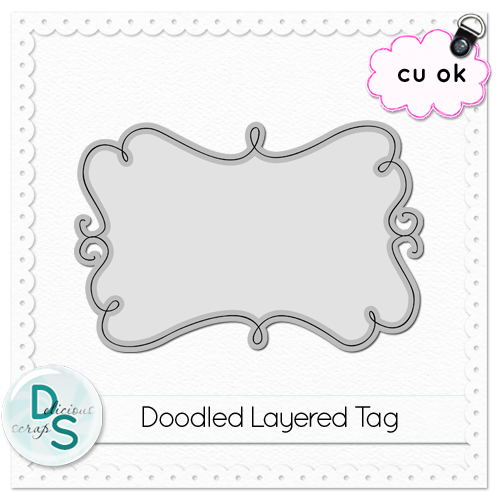
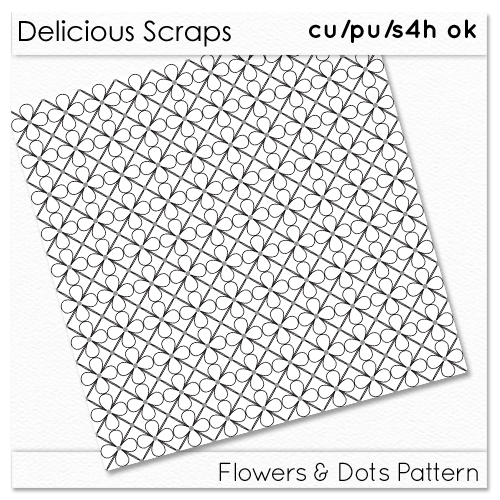
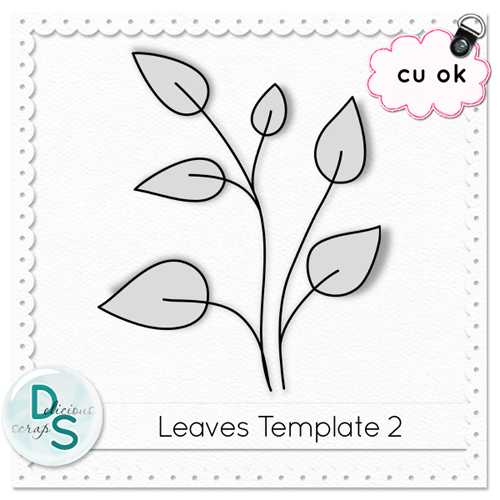
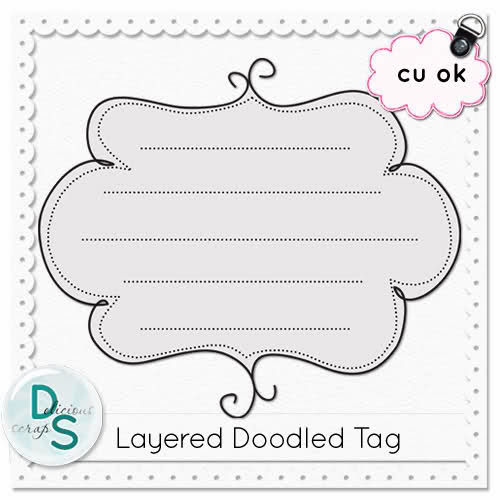
So I searched for a doodle frame or tag and came upon this fabulous website: Delicous Scraps. She's exactly what I was looking for. There's a ton of free doodle tags, plain pattern background wallpapers.

Here's a few things she has to offer, for free (click on picture to be taken to the download page):


And if there's something you like that isn't listed for free, it's just 99cents in her store!

In the end, I settled on this doodle tag of hers.


I did 4 different layers of the solid border tag from the 3 main colors of my pallette plus the black/slightly paler underline. And I added the other 2 colors from my pallette as the dotted borders, which are way less dominant, and actually hard to tell the color, but I find it finishes off well.

I wrote in the blog name with the font Simply Glamourous. I love how the capital letters are so big and fancy. I tried a few different fonts before this one, but once I tried this one I knew it was the best and I didn't need to look anymore.

I wanted to give the letters a bit more dimension so I copied the font layer and put it in the back of the first moving it slightly to make the lettering bolder and changed the color to a paler version. I often do this to text to make it pop more.

And then I had a logo:

Continue Reading...

Pages Navigation: Graphics

Continuing from where I left of in the last post about Pages Navigation organization... Now that I know what I want the labels, or pages, to be, I also had a very defined way I want them to appear and look.

I wanted them to look like file tabs, like in filling cabinets, but also be a bit whimsical and not the simple file tab shape we're used to. After some doodling on a piece of paper (I'm not very good at hand drawing things, or being creative with drawing), I managed to draw up some pretty cute looking tabs, don't you think?!


I scanned the piece of paper and opened it up in photoshop. I wanted to try to extract the shape somehow, but that didn't work out too great. I tried selecting the shape (ctrl + click on the layer and it selects the black part) and then painting the selection black, but again that didn't work very well.

So in the end I ended free hand, or free mouse drawing over the shape I had scanned. I was also able to correct when it wasn't quite as smooth as I wanted. I also tried a few thickness and settled on the medium one. It was more pixelated than I wished it was, but once it's the size you see on the blog, then it really doesn't show that much. This makes me want to try making vectors instead, then I wouldn't really have pixels. But I don't want to learn that right now, so this will have to do.

Then I wrote in my tabs, with the font Pea Ashlee Renee I made the font as big as I could while keeping it uniform for all of the labels.

Finally every label got treated to a bit of color by duplicating and coloring the tab doodle, and tilting it a bit so the black tab also shows underneath. I tried just having the colored tab but I dunno, I find with the black one in the back it gives off a better doodle vibe, which is what I really wanted.


The only thing I'm not entirely happy about is that because I freehanded the tab outline, it's a little pixelated and not as smooth as a vector art would be. I'm looking into doing the doodle with Adobe Illustrator, which should help make the outline more fluid and hopefully less pixelated.

Anywho, the real magic of these tabs is in the coding and behavior of these graphics on the webpage. Normally, they appear a little transparent, so that they don't command too much attention, but are still visible. But when you hover over them, or click on them, they become fully opaque (no transparency) and move up just a bit. It was super easy to do, too, just change the positioning and transparency on hover! Go ahead, try hovering over them or holding down your finger on them. I'm pretty proud of myself!


One part of the header down, 4 to go!
Continue Reading...